If your Permafrost map resets after loading, first confirm that you resumed the same saved world. Custom map markers disappearing after relaunching are a known issue. A confirmed universal restoration method for lost markers or explored map information has not been established, so keep your save and preserve your route with screenshots or notes while you identify what disappeared.
Early Access players have also reported losing regions and fast-travel information when returning to the game. Those reports describe affected saves; they do not establish that every world resets, that the world itself was deleted, or that a specific setting will restore all navigation data.
Identify exactly what disappeared
Open the map and compare it with what you remember from the previous session. Separate your own custom pins, quest guidance, named regions, and fast-travel information. A missing custom marker is a narrower failure than an apparently blank map, and neither automatically proves that buildings, inventory, or story progress vanished too.
Check the following independently:
| Information to compare | Why it matters |
|---|---|
| The world selected when loading | A different world has a different progression context |
| Custom markers you placed | Their disappearance after relaunching is currently a known issue |
| Named regions or exploration information | This identifies whether the problem extends beyond personal pins |
| Fast-travel information | A player report of missing information is not proof that every travel point was physically removed |
| Current Journal objective | This helps distinguish navigation loss from a separate quest problem |
| Your existing shelter and carried items | Their state helps describe the scope of the observed failure |
Record only what you can actually see. For example, “my three personal pins are gone, but the Journal and shelter remain” is more precise than “the entire save reset.” If more information disappeared, describe each missing category rather than treating the map as a single all-or-nothing state.
Confirm the same world in co-op
Permafrost characters are tied to a world. A solo character does not carry into a friend's world, and resuming another host world produces a different saved context. Check which world the host selected before diagnosing missing map information after a break.
The host should load the same existing world when the group resumes. For a cooperative session, the host uses Main menu → Play → Host Multiplayer and selects that world. Loading it in solo does not create a joinable session, although it remains a different issue from the map's persistence.
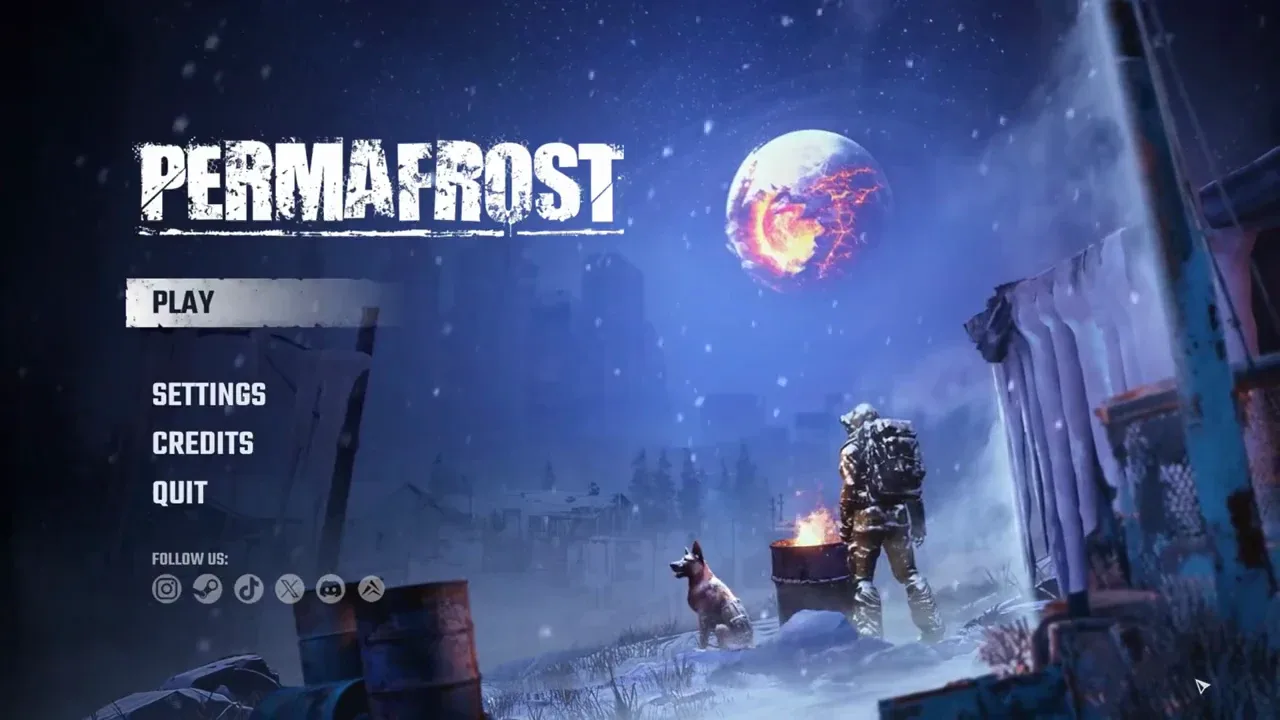
Play is the starting menu; verify Host Multiplayer and the same world in the following menus.
If the world is correct, compare what the host and guests each see. Record whether the loss is visible to everyone or only one player. This does not establish the underlying cause, but it gives the report a clearer scope than assuming that every player's map shares the same failure.
Do not create a new world as a restoration step. A clean map in a new world cannot demonstrate that the original world's markers recovered. Keep the affected world available while you examine it.
Preserve a usable route outside the map pins
Before ending a session, take a screenshot of your current map and keep a short note of the route you intend to resume. Include your shelter, the next named quest destination, and any personal markers you would otherwise rely on. This is a manual reference for your own navigation; it does not change the save or guarantee that the in-game map will persist.
Give your note enough context to be useful after a pin disappears. “Return to the Church at House Camp for Anna's conversation” is clearer than a marker label such as “next.” A screenshot showing the wider region and current position is more useful than a tightly cropped pin with no landmarks.
For a quest trip, capture the active Journal instruction as well as the map. The objective may still name the relevant location even when your custom route pin is gone. Keeping both views helps you resume the intended action without pretending the personal pin was restored.
If you choose to replace a missing custom marker during play, treat it as a temporary navigation aid. The known issue means that adding it again does not establish it will survive the next relaunch. Keep the screenshot or note until persistence has been checked in your actual save.
Use one clear reload comparison
If you want to document the failure, compare the same world before and after the next normal relaunch. Capture the map before leaving, then capture it again after loading. Note whether you merely loaded the world again or fully closed and relaunched the game; the current known issue specifically concerns custom markers disappearing after relaunching.
Keep the comparison focused. Do not change several settings, switch worlds, and move to a different host between the two captures, because those changes make it harder to describe what happened. The purpose is to establish the visible result, not to assert that a reload is a fix.
A successful persistence check is that the same navigation information is still present in the same world after returning. If it survives once, that is useful for your current session, but it does not prove the underlying issue is resolved for every future restart or every other save.
Report the map state without discarding the save
If navigation information disappears again, keep the world and prepare a report with the two map screenshots. State exactly which markers or map categories vanished, whether other progress remained, and whether you played solo, hosted, or joined.
Include the installed version or build if it is displayed by the game or launcher. Record whether the symptom began in an older version and whether it remains after updating. Include the save and logs through the developer reporting process so the affected state can be inspected.
There is no confirmed map-file edit, setting toggle, or reconstruction procedure here that restores all lost exploration data. Avoid presenting repeated travel, new markers, or a successful session join as proof of recovery. The practical outcome is to resume in the correct world, retain a usable reference for the next trip, and document the specific information that fails to persist.
Sources and version notes
Sources checked: 12 October 2026. Verification labels refer to the cited documentation and its stated limits; this site has not independently tested these steps in the game. Compare the information with your installed build.
- Known Issues & Workarounds (Updated October 11) — Developer issue post. Scope: Disappearing custom map pins, without a verified universal map-reset repair.
- Steam Community :: Permafrost — Player reports. Scope: Oct 10 review reports regions/markers/fast-travel information gone after re-log.
- Co-op Guide: How to Host, Join and Fix Connection Issues :: Permafrost General Discussions — Developer guide. Scope: Host Multiplayer and Join Multiplayer Sessions menus; password/player slots.
Regions/travel disappearance comes from individual Oct10 reviews; known developer issue specifically custom pins. No universal restored-map method supported.