
The currently documented Permafrost mod option is the unofficial Permafrost ModLoader API, a framework for loading compatible DLL mods. Installing the framework alone does not add a new gameplay feature. You need an additional mod built for its supported API, and that mod must support the game build you are running.
Compatibility with the newer Quest Fixes & Steam Invites update has not been established. The visible loader version information is also inconsistent, so this page does not name a verified newest download. Treat installation as conditional on checking the actual file version and supported game build. Permafrost remains in Early Access; wording about a Windows release executable does not mean it has reached version 1.0.
Separate the loader from a gameplay mod
The loader supplies a common way to discover compatible DLL files, start the game, display recognized mods, and provide configuration and logging. A gameplay mod supplies the actual change you want to make. These are two separate pieces of software with separate compatibility requirements.
| Component | Its role | What it does not establish |
|---|---|---|
| Permafrost ModLoader API | Starts a supported executable and loads compatible DLL mods | A particular gameplay feature is included |
| Additional DLL mod | Implements a specific change using the supported API | Every other DLL or Unreal Engine mod is compatible |
| F9 management menu | Lists recognized mods and supported runtime controls | Every mod can be toggled without restarting |
| Version validation | Checks supported game builds | Every new game update is automatically supported |
| Diagnostic logs | Record startup and loading information | Every error has an automatic repair |
Do not interpret a working management window as proof that the feature you wanted is installed. The window can exist while no additional gameplay mod is available or recognized. Likewise, a DLL in the folder is not proof that it targets this game's API or your current game build.
There is no verified broad catalog of finished gameplay mods in this guide. Avoid planning around a supposed mature mod ecosystem, a complete collection of bug fixes, or an established total conversion. The framework provides a foundation; it is not evidence that all those projects already exist.
Check the game build and the actual loader file
Before adding files, identify the Permafrost build installed on your computer and the loader file you intend to use. Read the supported-build information for that exact file. An archive name, a top-level version label, and a changelog entry can describe different things if the page has not been updated consistently.
The current loader metadata and changelog do not agree sufficiently to establish which version is the verified newest download. Do not resolve that discrepancy by choosing the largest number and assuming it is the file you will receive. Check the actual file entry and its compatibility information.
The framework targets a validated October 2026 Windows executable. That statement is narrower than support for every Permafrost update released during October. The newer quest and invitation patch may change the executable, and compatibility with it remains unconfirmed here.
If support for your build is absent or unclear, stop before installing. There is no verified reason to bypass a validation failure or substitute a version number to make the loader accept an unknown executable. A failed compatibility check is useful information, not an obstacle this guide can safely erase.
Preserve a working unmodified baseline
Start from a working game installation. Launch Permafrost through its normal route and confirm you can reach the menu and load the intended test world. This establishes the behavior you will compare after introducing the loader.
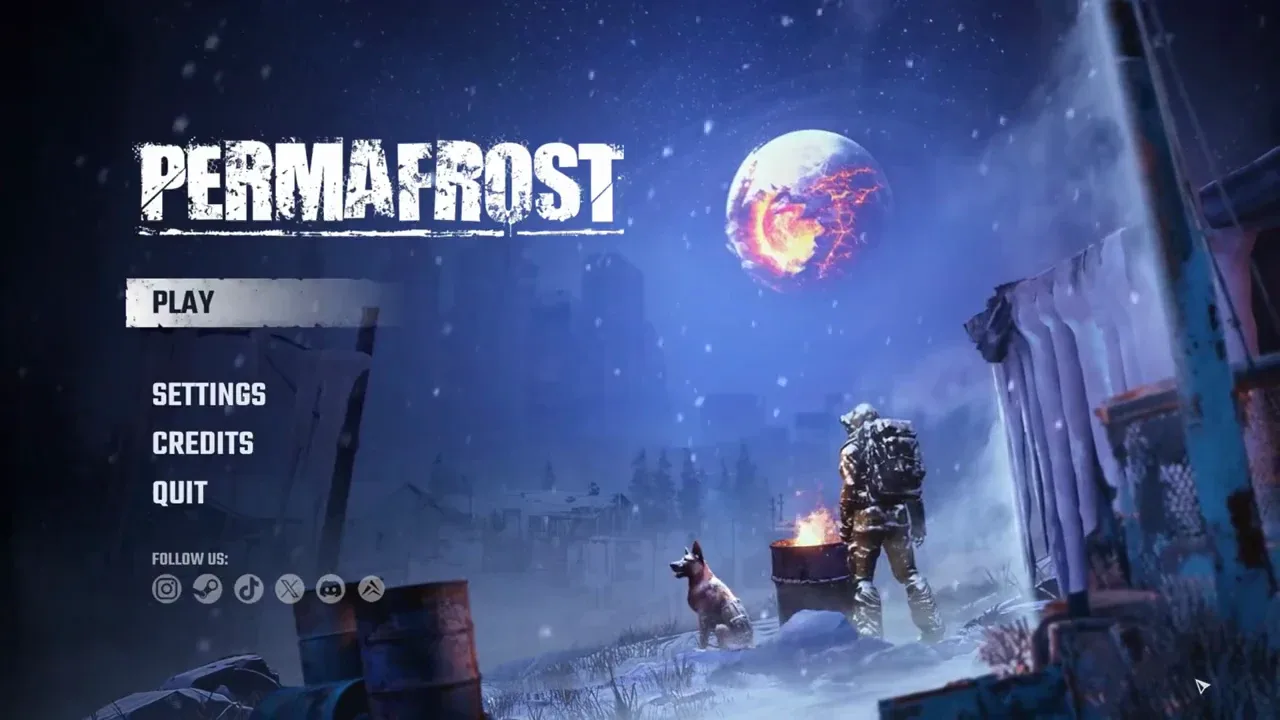
Interface reference for the normal launch baseline; this image does not show a modloader or installed mods.
Record the game build and keep a backup of saves before installing a gameplay-changing mod. This is directly relevant to the change: individual mods can affect stability, saved games, or multiplayer. A successful loader startup does not prove that a changed save can be returned to its earlier state.
Use a separate test context when possible instead of making the first compatibility experiment in the world your group is actively progressing. Keep the original save identifiable. This recommendation does not invent a built-in mod-profile system or a recovery feature; it simply keeps the test distinct from your established playthrough.
Do not add several unrelated mods at once. If you install one compatible DLL and test it before adding another, the result is easier to interpret. A folder full of new files can produce a failure without identifying which new component caused it.
Understand the documented file layout
The documented loader package belongs in the main Permafrost installation directory. For Steam, locate the actual directory through the Library entry, Properties, Installed Files, and Browse. That is more reliable than assuming every computer uses the default drive and path.
| File or folder | Documented purpose |
|---|---|
| PermafrostModLoader.exe | Launches the game through the loader |
| PermafrostModHost.dll | The framework host component included with the package |
| Mods | Contains compatible Permafrost Mod API DLL mods |
| Config | Holds the loader configuration file |
| PermafrostModLoader.ini | Central loader configuration |
| Logs | Startup, initialization, loading results, and errors |
| Permafrost-Win64-Shipping.exe | The game executable the loader locates |
These names help identify the intended arrangement. They are not instructions to replace the original game executable. The described framework is designed to operate without permanently modifying that executable.
Keep the distinction between the main installation directory and the nested game executable path. Placing everything beside a nested executable because its name looks relevant is not the same as following the documented root layout. Use the package instructions for the exact supported release rather than improvising a different folder arrangement.
Install only after compatibility is confirmed
If the loader file supports your installed game build and the additional mod supports the same API, the documented installation route is:
- Close Permafrost.
- Locate the main installation directory through Steam's Installed Files and Browse controls, if using Steam.
- Extract the supported loader archive into that main directory, preserving its included files and folders.
- Place the compatible gameplay-mod DLL inside the Mods directory.
- Launch through PermafrostModLoader.exe.
- Inspect the loading result before using the feature in your continuing save.
This is the documented method for a compatible package, not a recommendation to install against an unknown current build. There is no verified alternate installation route here for an unsupported game executable.
The compiled framework does not require BepInEx, a separate third-party mod manager, Visual Studio, or C++ development tools for a normal installation. That does not make an arbitrary DLL compatible. The additional mod still needs to be built for the supported Permafrost Mod API interface.
Avoid copying installation steps from another Unreal Engine game. Sharing an engine does not establish the same file layout, loading mechanism, or API. This framework does not automatically accept every Unreal Engine mod.
Use F9 to inspect recognized mods
In the documented loader interface, F9 opens the management window. The window shows recognized mods and the runtime controls those mods support. Press F9 again or close the window to return to the game.
The management window can temporarily interrupt interaction with the main menu while it has focus. If the game menu appears unresponsive while the loader window is open, close the window before deciding the underlying game menu is broken.
Runtime enabling and disabling depend on the individual mod. Some changes can be controlled during play when implemented by the mod developer; others need a restart. Do not assume every listed feature has an immediate switch or that switching it off removes every effect already written into a save.
Use the menu to answer a concrete question: is the intended mod recognized, and does it expose the control its description promises? If it is absent, return to compatibility and file placement. Repeatedly pressing F9 cannot turn an incompatible DLL into a recognized one.
Diagnose the failed stage rather than changing everything
A modded launch can fail before the game starts, during loader initialization, while discovering a DLL, or after the game is running. Keep those stages separate when reading the logs and comparing the unmodified baseline.
If the loader rejects the build, record the game build and loader file version. If the game opens but the additional mod is not recognized, check the DLL's API requirement and its placement in Mods. If the mod is listed but the feature does not behave as expected, inspect the individual mod's controls and restart requirements.
The diagnostic logs can record startup events, initialization, loading results, and errors. Preserve the relevant error rather than deleting the whole Logs folder before seeking help. This guide does not supply a universal config value or a guessed line to edit in response to every log entry.
After a game update, reassess compatibility before continuing to launch with the same modifications. An earlier successful session is evidence about that earlier setup. It does not establish support for an executable changed by a later patch.
Keep multiplayer claims limited to the actual mod
A framework-level multiplayer hosting result does not verify every individual gameplay mod. Each mod can introduce its own requirements or effects on session behavior. Check the exact mod's multiplayer support before involving friends or loading the group's continuing world.
The public framework does not include dedicated-server functionality. It does not convert Permafrost's player-hosted world into a persistent server that guests can use while the host is offline. The normal host-owned world and world-bound character rules still matter.
Do not treat the loader as a general solution for an invisible guest-side dog, quest registration fault, or missing authentication token. There is no verified mod fix for those problems established here. Use the game's current troubleshooting for a base-game fault and evaluate a specific mod only when its actual behavior and build support are known.
The practical decision is conditional: use the framework when the exact loader, exact game build, and intended DLL are supported together. If one of those remains unknown, keep the working base game as your baseline and wait for a confirmed compatible file rather than assuming an installation method is a compatibility guarantee.