
For Permafrost missing authentication token, invalid authentication token, or a greyed multiplayer option, the current guidance is to put Steam in online mode and turn off the VPN. Then restart the game and repeat the multiplayer attempt. These checks address the documented error state; they are not a guaranteed fix for every session that is missing from the browser.
Keep the exact wording of the message. A token error, a wrong password, and a session that cannot be found are different results. Do not delete your world or recreate a character to perform the online-state checks.
If authentication succeeds but the session still fails, continue with joining a friend’s world. Character continuity is covered by world-bound character progress.
Confirm the error before changing settings
Record whether Permafrost displays a missing token message, an invalid token message, or a disabled multiplayer option. Also record the action that produced it: opening multiplayer, trying to host, or trying to join.
| State you see | Useful next check |
|---|---|
| Missing authentication token | Steam online mode and VPN state |
| Invalid authentication token | The same documented online-state checks |
| Greyed multiplayer option | The same documented online-state checks |
| Session absent from the browser | Host mode, cabin progress, session name, and update state |
| Password rejection | The exact password and accidental spaces |
| GPU crash or exit to desktop | The crash branch, with its own error details |
The message identifies a state worth investigating; it does not establish the underlying technical cause by itself. There is no verified explanation here that every token error comes from a particular server outage, local file, or account restriction.
Put Steam in online mode
Check Steam's actual mode before launching another attempt. Being connected to the internet does not by itself establish that the Steam client is operating in online mode. Likewise, seeing the game in your Library is not the multiplayer-state check.
Use the Steam client to return to online mode if it is offline. Complete that change before opening Permafrost again. The documented guidance is about Steam, so do not silently apply an identical account procedure to another storefront and describe it as verified.
If Steam cannot enter online mode, that is the current blocker. Record it separately rather than changing the world's password or assuming a different Permafrost save will provide a token. Those session settings do not resolve the failed online-state prerequisite.
Turn off the VPN for the test
If a VPN is active, turn it off before retesting. Keep this as an individual change whose result you can observe. The guidance does not establish that every VPN service fails, nor that the error proves a specific provider is at fault.
Do not add a different network utility, port-forwarding rule, or guessed authentication file to this step. No such workaround is verified for this error here. The useful test is the documented condition: Steam online and the VPN off.
After those conditions are set, close and restart Permafrost. If both players are troubleshooting a shared session, have them install the available game update and restart their clients before reopening the session.
Retry from a clear multiplayer starting point
Return to Permafrost's main menu for the new attempt. If you are hosting, choose Play and Host Multiplayer for the intended world. If you are joining, use Join Multiplayer Sessions or an applicable Steam invitation.
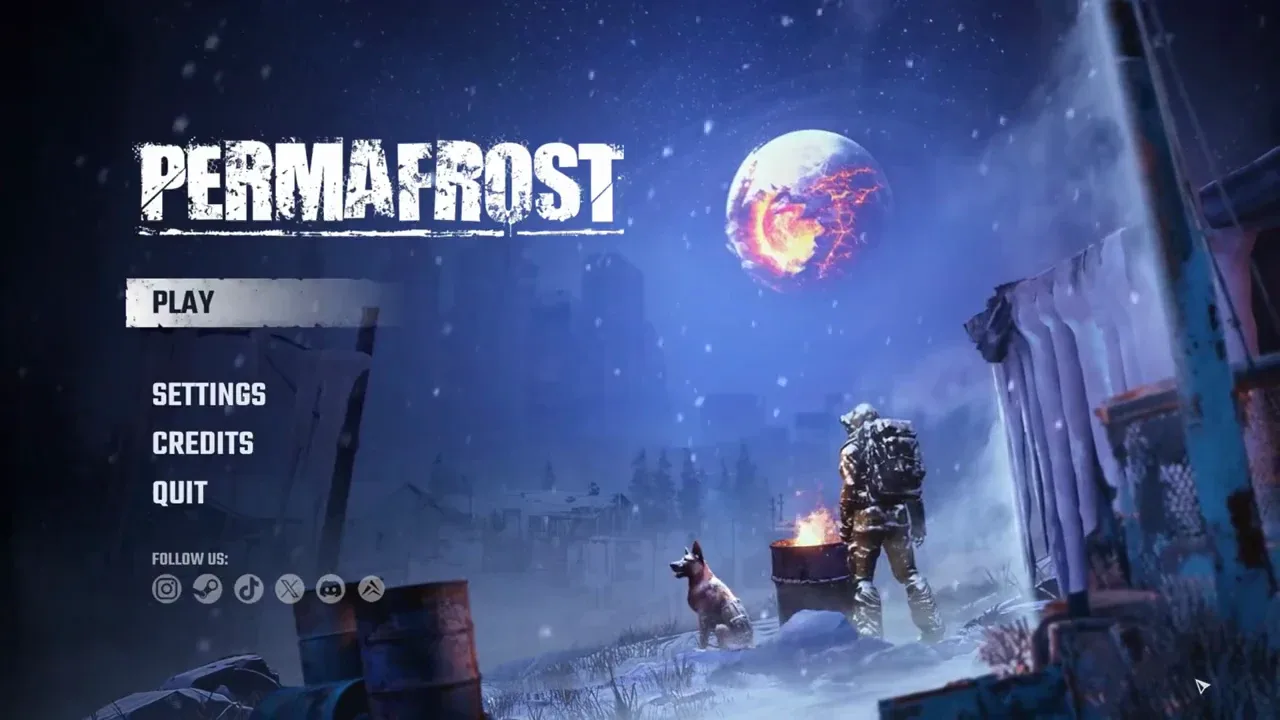
Interface reference for restarting the attempt from the main menu; this image does not display an authentication error.
For a Steam invitation, launch Permafrost first and wait at the main menu before accepting. That is the current invitation condition. It does not replace the online-mode and VPN checks when a token message is present.
The host must reach the cabin before guests can join a newly started world. Keep that separate from authentication. If the token message disappears but the session still cannot be entered, the new result may belong to the hosting or joining procedure rather than the original error state.
Read the result of the retry precisely
A useful retry has one of several concrete outcomes:
- The token message disappears and multiplayer access works.
- The token message disappears, but another failure appears.
- Multiplayer is still greyed out.
- The same missing or invalid token message returns.
Record which one happened. If the error changes to a password rejection or an absent session, continue with that specific check. Do not repeat the token procedure indefinitely when the game is now telling you about a different problem.
If the same token error persists, keep the current world and character intact. Note Steam's online state, whether the VPN was active before the test, the game build if displayed, and the exact host or join action that triggers the message. That is enough to preserve a clear troubleshooting result without inventing an internal authentication mechanism.
No confirmed token-reset command, save-file edit, or guaranteed recovery step is established here beyond the documented checks. If Steam is online, the VPN is off, both clients are updated, and the same message remains after a restart, the cause is still unresolved. Keep the exact state for further diagnosis rather than replacing it with a guessed fix.
Sources and version notes
Sources checked: 12 October 2026. Verification labels refer to the cited documentation and its stated limits; this site has not independently tested these steps in the game. Compare the information with your installed build.
- Known Issues & Workarounds (Updated October 11) — Developer issue post. Scope: Steam online mode and the developer’s VPN troubleshooting guidance.
- Co-op Guide: How to Host, Join and Fix Connection Issues :: Permafrost General Discussions — Developer guide. Scope: Host Multiplayer and Join Multiplayer Sessions menus; password/player slots.